Powerbuyer Documentation
Complete guides and feature explanations for using Powerbuyer
Getting Started
Creating Your Account
Getting started with Powerbuyer is simple:
- Visit Powerbuyer to create your account
- Enter your email address and create a secure password
- Verify your email address by clicking the link we send you
- Sign in and start configuring your first search
Your account starts with a 10-day free trial with full access to all features. No credit card required.
Understanding the Dashboard
Once logged in, you'll see the main Powerbuyer dashboard with several key areas:
- Header: The top bar contains the search toggle slider (start/stop live monitoring), a listing count pill showing how many results are in your feed, the settings icon, and your user menu with email, subscription status, and sign-out option
- Settings Panel: Configure search parameters, filters, display preferences, and notification options
- Feed: View real-time Etsy listings matching your search criteria, sorted and filtered to your preferences
- Status Bar: Displays the current search status, a connection indicator, and the total listing count
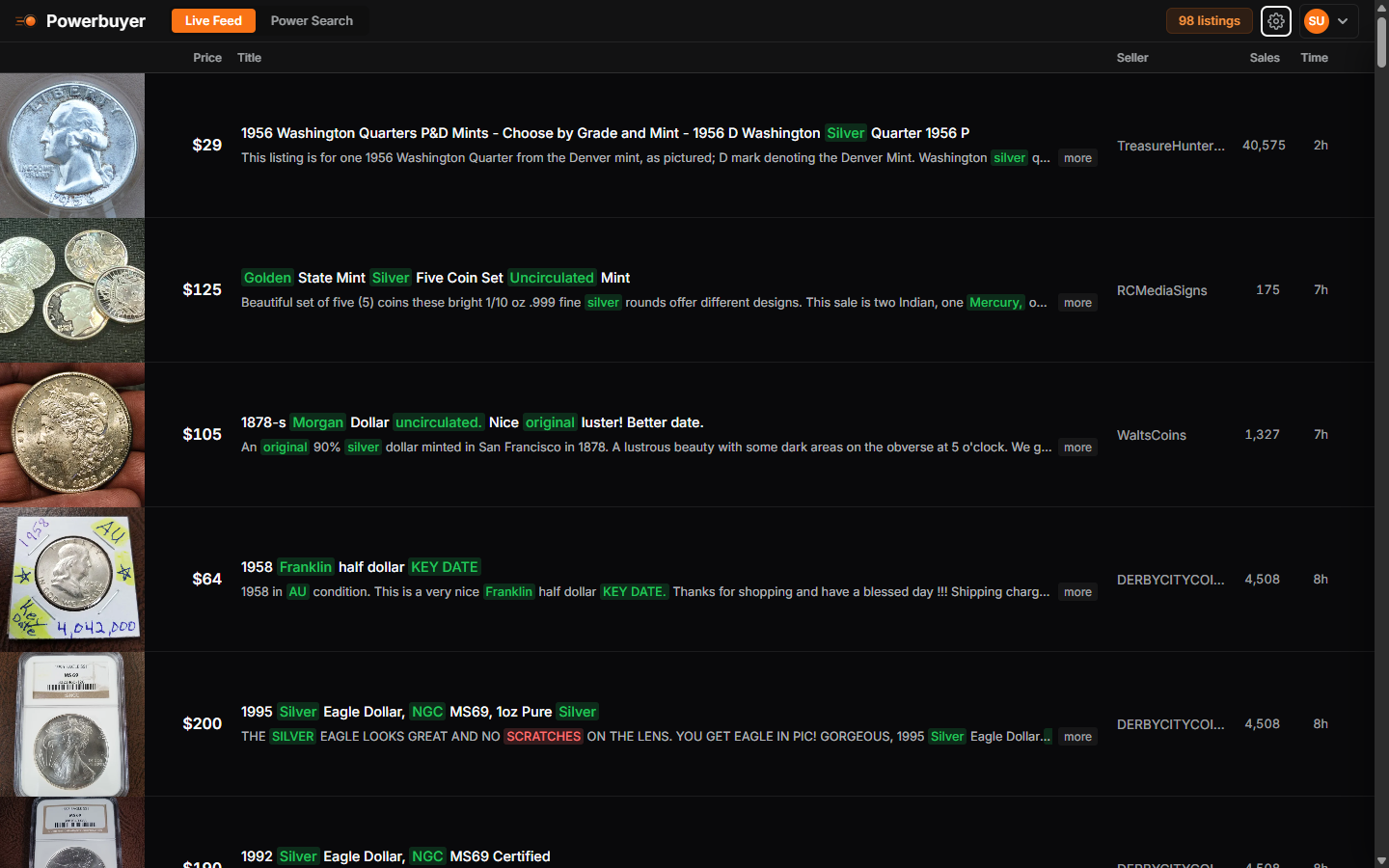
The Powerbuyer dashboard showing the header controls, live feed, and status bar
Configuring Searches
Etsy Marketplace
Powerbuyer is optimized for Etsy, the leading marketplace for handmade, vintage, and craft supply items. Our specialized integration uses Etsy's official API to provide near-real-time listing data with advanced filtering.
Etsy Configuration
Fine-tune your Etsy searches with these parameters:
- Search Keywords: Keywords to search for (e.g., "vintage gold jewelry")
- Sort Order: Choose from Default (Newest first), Newest first, Price: Low to High, Price: High to Low, or Relevancy
- Price Range: Set minimum and maximum prices to focus on your target range
- Result Limit: Maximum number of results to retrieve per search (up to 1,000)
Etsy-Specific Filters
Advanced filters to help you find exactly what you're looking for:
- Exclude Craft Supplies: Hide craft supply listings to focus on finished items
- Exclude Customizable: Hide personalized/made-to-order items
- Quantity Filter: Hide listings with quantity greater than 1 (removes bulk/wholesale items)
- When Made Filter: Exclude items by era (e.g., exclude "2020-2026" to focus on vintage)
- Materials Filter: Exclude items containing specific materials (e.g., "plated", "filled")
Filtering and Highlighting
Content Filtering
Use content filters to hide unwanted listings:
- Exclude from Titles: Hide listings with specific words in the title (e.g., "filled", "plated")
- Exclude from Descriptions: Filter out listings with certain words in the description
- Quantity Filter: For Etsy, hide listings with quantity greater than 1 (removes bulk/wholesale items)
Use quotes for exact phrases: "vintage Nike"
Keyword Highlighting
Highlight important terms to quickly identify relevant listings:
- Green Highlights: Positive indicators (e.g., "authentic", "vintage", "rare")
- Red Highlights: Warning signs (e.g., "replica", "damaged", "fake")
Highlighted keywords appear color-coded in listing titles and descriptions, making it easy to spot important details at a glance.
Seller Management
Blocking Sellers
Block sellers whose listings you don't want to see:
- Right-click on a seller name in any listing
- Select "Block this seller" from the context menu
- The seller will be added to your blocked list and their listings will be hidden
You can also manually add sellers to your blocked list in Settings.
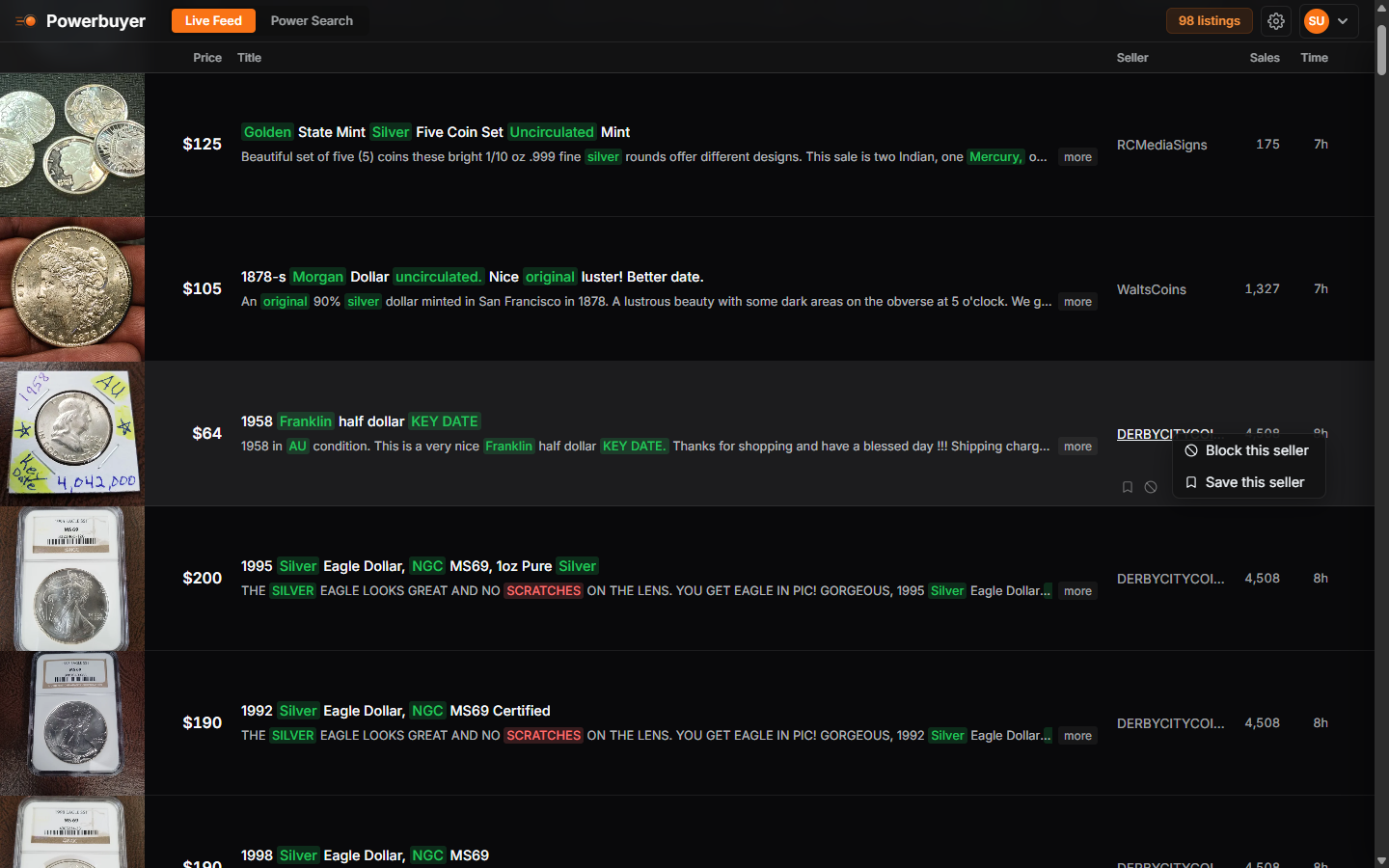
Right-click a seller name to block or save them
Saving Favorite Sellers
Save sellers you trust and want to monitor closely:
- Right-click on a seller name
- Select "Save this seller"
- New listings from saved sellers will be highlighted in your feed so you can spot them at a glance
Power Search
Power Search lets you search recent Etsy listings (past 24 hours) across up to 5 keywords at once, separate from your live feed. It is ideal for researching a niche, checking what's available right now, or sourcing from a focused set of results.
Note: Power Search is a Pro feature.
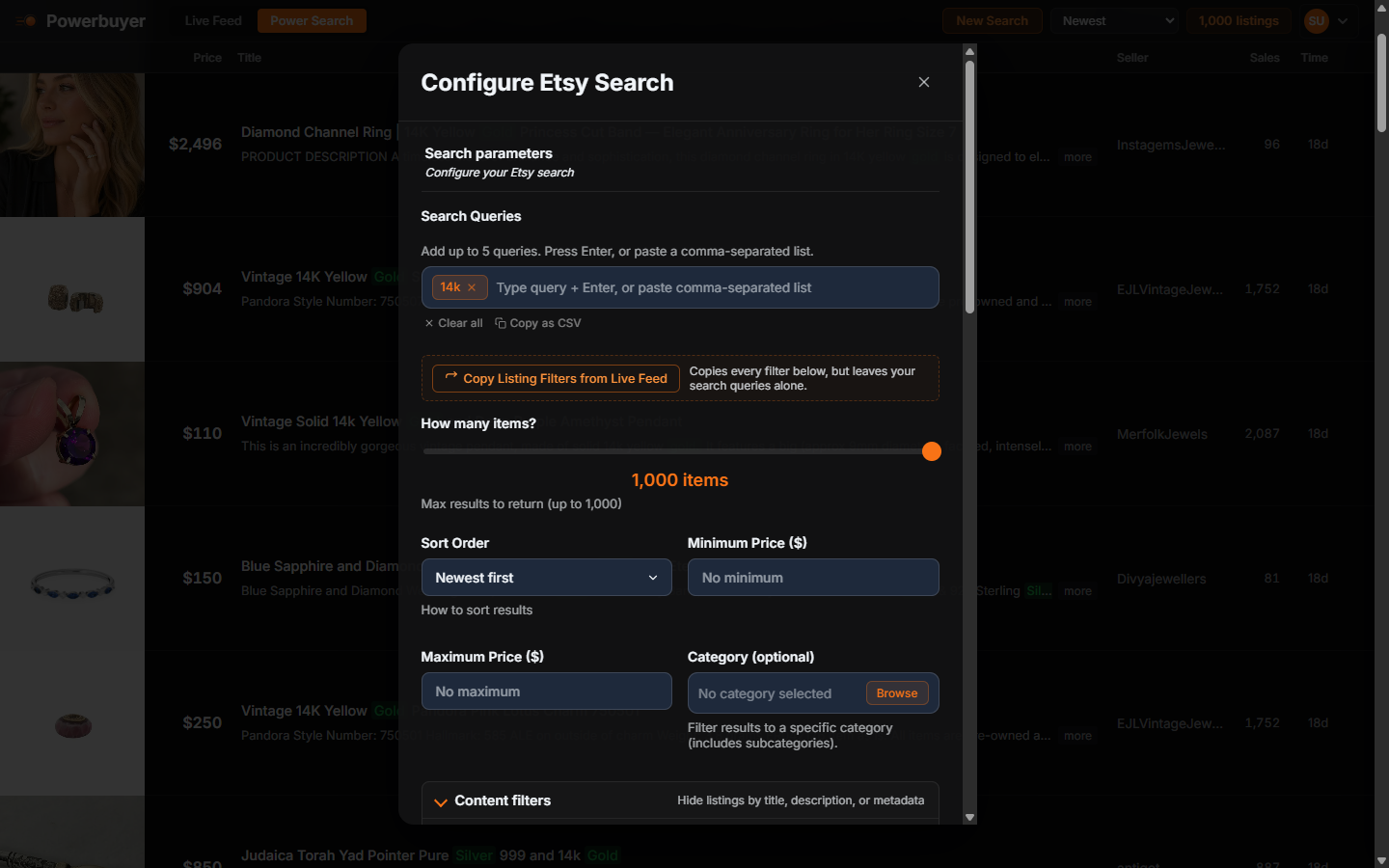
The Power Search modal with query and filter configuration
Running a Search
Search recent Etsy listings:
- Add up to 5 search queries at once
- Set a result limit (up to 1,000 listings)
- Configure sort order, price range, and category filters
- Your content filters from Settings are automatically applied to the results
Working with Results
Once results are loaded, you can:
- Search within results by title, seller, or keyword
- Sort by imported date, price, title, or other fields
Display Options
Grid vs. List View
Toggle between grid and list view for different browsing experiences:
- List View (Default): Compact view showing more listings at once
- Grid View: Larger images, ideal for visual browsing
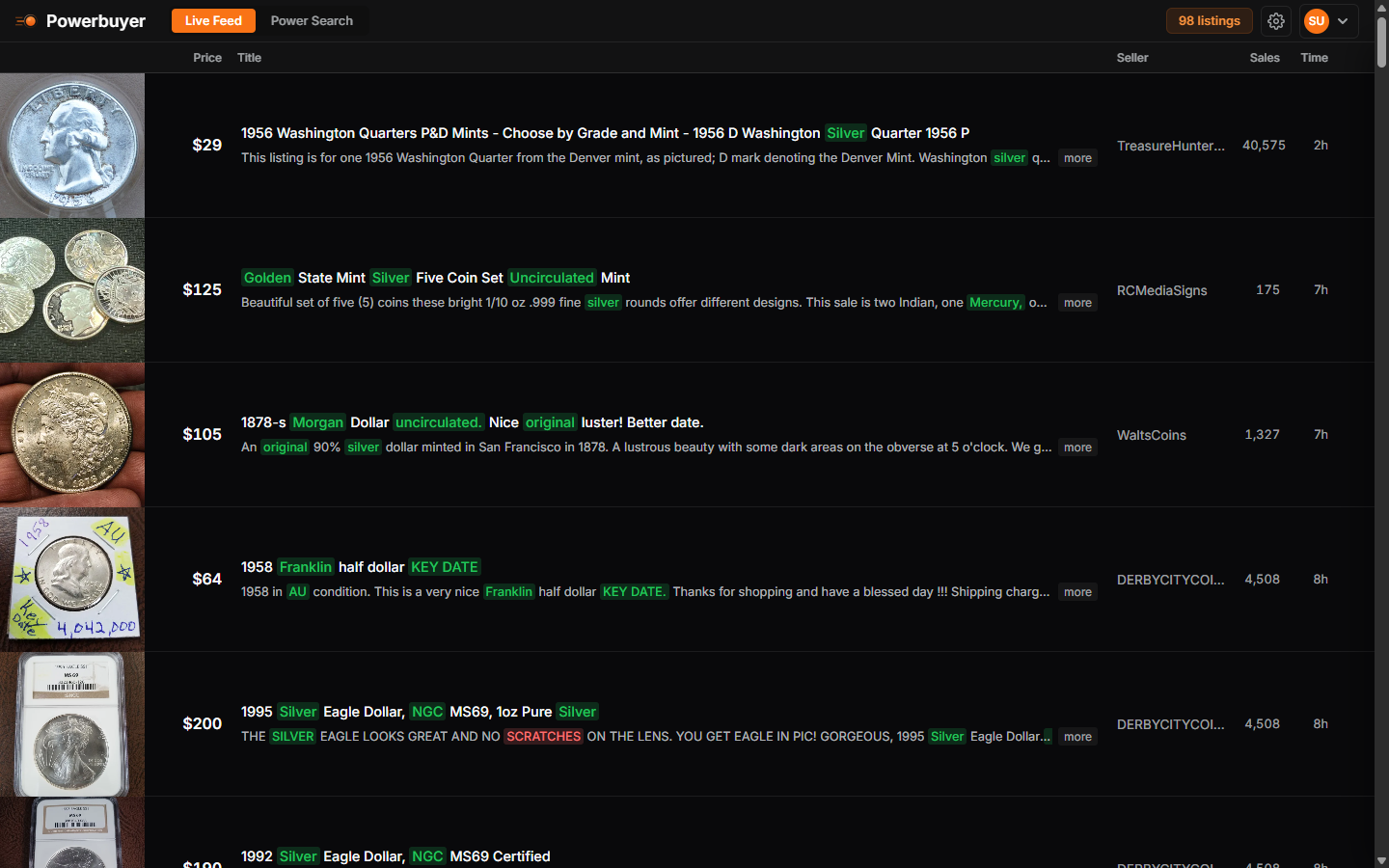
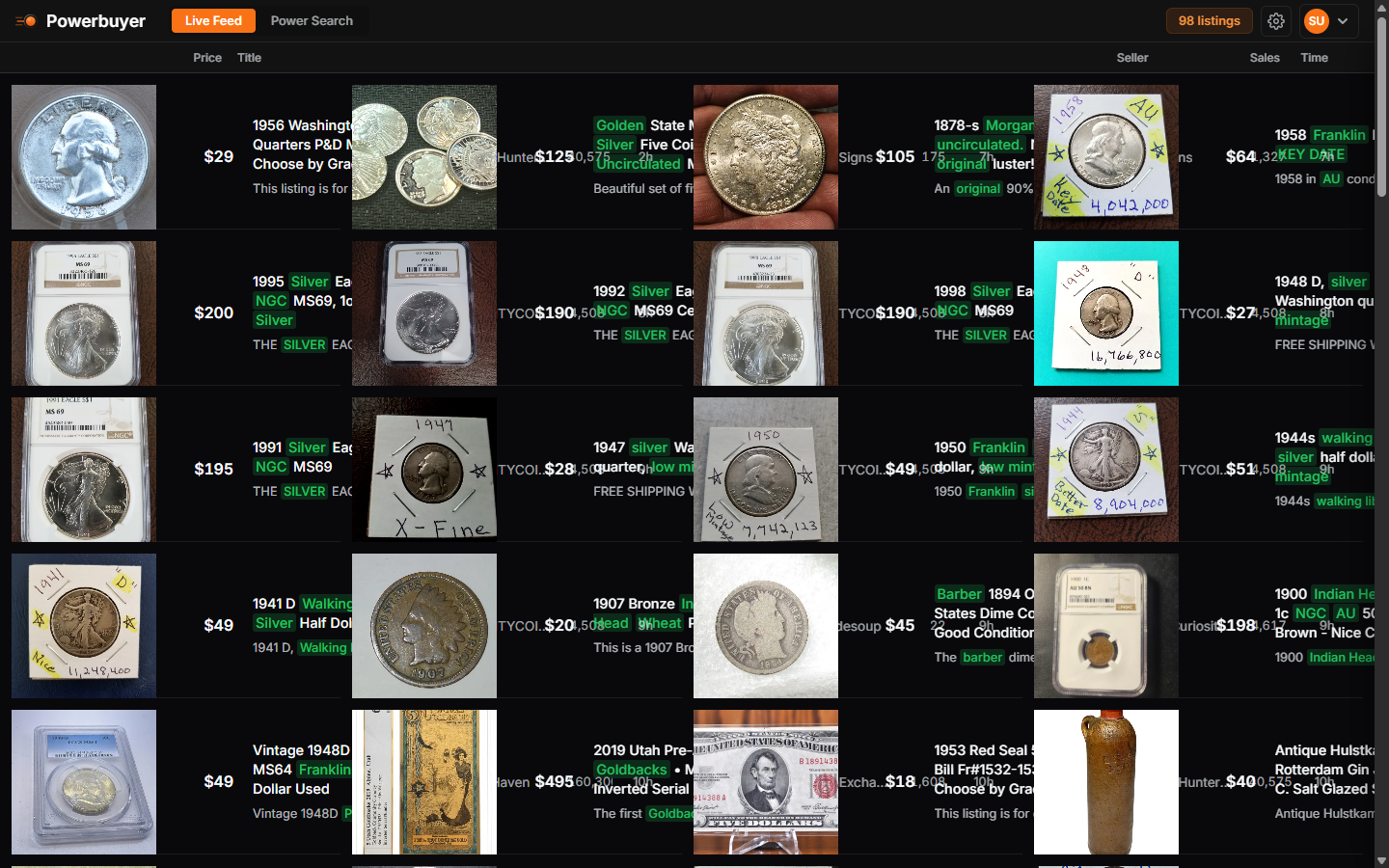
Image Expansion
Hover over listing thumbnails to see larger images. Configure expansion size:
- None: No expansion on hover
- Medium: Half-screen preview (default)
- Large: Full-screen preview
Price Display
Toggle "Round Price to Nearest Dollar" in Settings to display prices without cents (e.g., $35.99 becomes $36). This is a display-only setting and does not affect exports or filters.
Timezone Settings
Set your timezone to see accurate listing times. Choose from major US, European, and Asian timezones.
Automation Features
Telegram Notifications
Receive notifications on your phone within seconds when new listings match your keywords or saved sellers post new items:
- Open Settings and expand the Telegram Notifications card under the Preferences tab
- Click "Connect with Telegram" to open @powerbuyer_bot
- Press Start in Telegram to get your linking code
- Paste the code back in Settings and click Link
- Toggle on the keywords you want alerts for, and enable saved seller notifications
Note: Telegram notifications are available on the Pro plan.
Managing Results
Dismissing Listings
Remove listings you're not interested in:
- Hover over a listing and click the dismiss button in the top-right corner
- The listing will be hidden from your feed
Settings Management
Backing Up Settings
Save your configuration to a file:
- Go to Settings and find Settings Management
- Click "Back up settings"
- Your settings will be downloaded as a JSON file
Importing Settings
Restore settings from a backup:
- Go to Settings and find Settings Management
- Click "Import settings"
- Select your backup JSON file
- Your settings will be restored
Subscription Management
Free Trial
All new accounts receive a 10-day free trial with full access to every feature. No credit card is required to start. After the trial ends, subscribe to the Pro plan to continue using Powerbuyer. Your data and settings are preserved.
Upgrading Your Plan
Upgrade to Pro for full access:
- Click on your plan name in the dashboard header
- Select "Upgrade Plan"
- Choose your desired plan on the pricing page
- Complete payment through Stripe
Managing Your Subscription
View and manage your subscription:
- Current Plan: Displayed in your dashboard
- Billing Date: Next renewal date
- Payment Method: Manage through Stripe Customer Portal
- Cancel Subscription: Cancel anytime (access continues until end of billing period)
What's Included
| Feature | Free Trial | Pro |
|---|---|---|
| Live Feed | 10 days | Unlimited |
| Power Search | 10 days | Unlimited |
| Advanced Filtering | 10 days | Unlimited |
| Keyword Highlighting | 10 days | Unlimited |
| Seller Management | 10 days | Unlimited |
| Telegram Notifications | 10 days | Unlimited |
Troubleshooting
Authentication Issues
If you can't sign in:
- Verify your email and password are correct
- Check if you need to confirm your email address
- Try resetting your password
- Clear your browser cache and cookies
Search Not Starting
If searches won't start:
- Ensure you've configured your Etsy search settings with at least one search query
- Check that the search toggle is enabled
- Verify your subscription is active (check the plan status in your user menu)
- Try refreshing the page
- Check the browser console for error messages
Missing Listings
If you think you're missing listings:
- Check your content filters and blocked sellers
- Verify your Etsy search is configured and running
- Ensure you haven't dismissed the listings
- Review your When Made and Materials filters, which may be excluding items
- Try clearing and re-running your search
Tips and Best Practices
Optimize Your Searches
- Use specific keywords tied to your profitable niche rather than broad terms
- Set price ranges that match your target profit margins
- Use quotes for exact phrases to eliminate false matches:
"vintage Nike" - Combine multiple search terms to cover variations your competitors might miss
Manage Your Feed Efficiently
- Dismiss non-opportunities immediately; every second counts in arbitrage
- Block sellers who waste your time with overpriced or low-quality inventory
- Use color highlighting to instantly identify profit opportunities vs. time-wasters
Stay on Top of Opportunities
- Save high-quality sellers to get their listings highlighted automatically in your feed
- Set up Telegram notifications to be first to see new opportunities, even on mobile
- Use Power Search to research a new niche before committing to live monitoring
Need More Help?
Can't find what you're looking for? Our support team is here to help.